Tutorial
BeginnerCheck a Member Email Send List Against Your Do-Not-Send List Before the Send
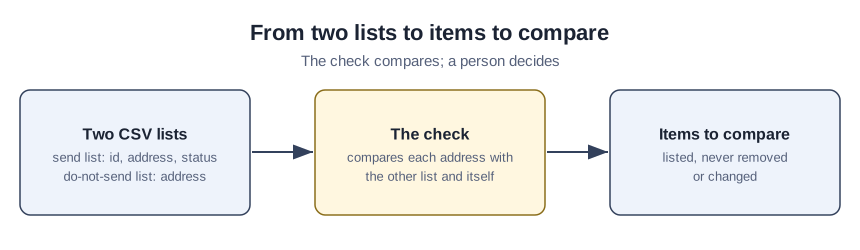
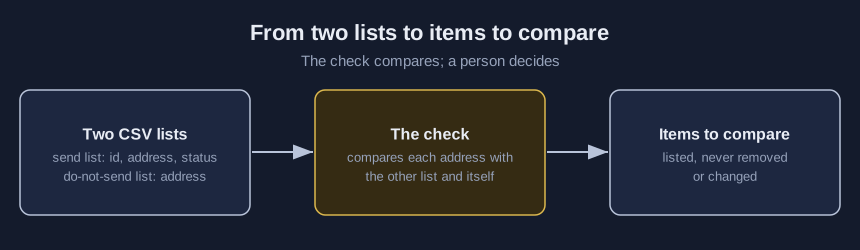
Choose a CSV send list and a CSV do-not-send list in a browser lab, set your own word lists and limits, and read the items to compare with the original export: shared addresses, status words, role mailboxes and address problems.
Time needed: About 45 minutes, plus the time to compare each listed item with the original export
Before you start:
- An export of the send list with a member id, an email address and a status for each member, or use the sample files
- The do-not-send list: every address that unsubscribed or bounced, plus any others your organization decides to leave out
- A recent desktop browser
Email Member Data Data Quality Csv
A send list can hold someone who asked to stop, a team mailbox, or a typo. By the end you will have compared a send list with a do-not-send list, address by address, and written down what you decided. If the list came out of a spreadsheet, the tutorial on damage in a re-saved member export comes first, and for duplicate member records see the duplicate and stale records tutorial, because the lab here lists a repeated address only as one kind of item.
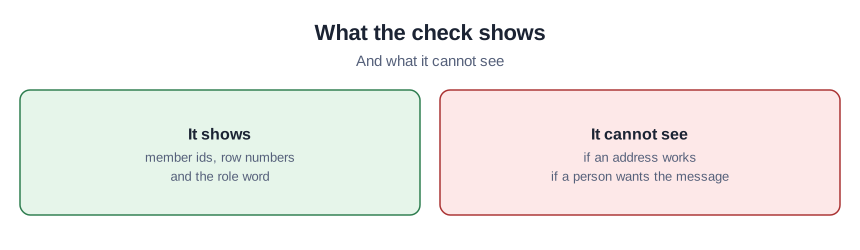
Try it now: the send list check compares a CSV send list with a CSV do-not-send list inside your browser tab. Nothing is uploaded, and its reports show member ids, row numbers and the role word, never an address or a name. Until your organization decides who may see the real send list, use made-up data.
What mail specifications, two university pages and one association’s account cover
No source we read shows that running this check improves a send.
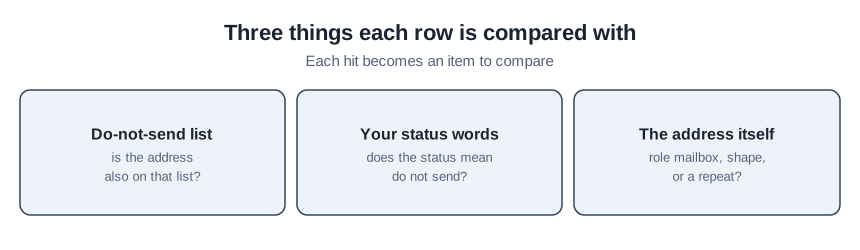
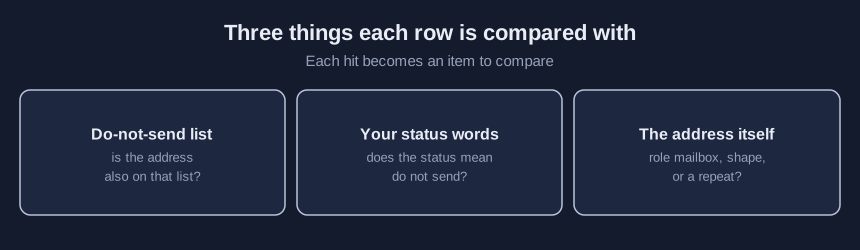
An Internet standards-body specification for mail, October 2008, sets 64 octets as the longest part before the at sign, 255 for the domain and 256 for a path including punctuation, and discourages relying on that first part being case sensitive. An Internet standards-body informational memo, February 2004, bars a period at either end of that part or two in a row, says a domain generally needs at least one period, and says many experts believe such tests should be avoided in applications, so the lab lists and never rejects.
A 1997 Internet standards-body specification names mailboxes for receiving mail, such as info, marketing, sales and support, and says most organizations need not support the full set. It does not say such a mailbox belongs off a send list.
One university’s own mass email policy says unsubscribed addresses on a professional organization’s list there may not be re-added unless membership status changes or the person asks. A second university’s marketing unit, page read October 2026, says list data should be accurate and up to date, unclean lists cause bounced emails from incorrect addresses, and nobody should be resubscribed without express permission.
A magazine article in an association’s own publication, March 2022, reports one association’s account that nearly a fifth of its member entries were duplicates. It concerns member-database duplicates and returned postal mail, not email lists.
Compare a send list with a do-not-send list in eleven steps
The blank templates and the log come in the starter kit, which we’ll send if you email ai@trihelix.co.
- Export the send list with a member id, an address and a status for each member.
- Start both files from the first rows of the kit’s two blank templates.
- Fill the do-not-send file with every address that unsubscribed or bounced.
- Type your own column names under “Columns in your files”.
- Edit the word lists and limits under “Settings you can change” to suit your list.
- Pick the send list with “Send list, CSV file from your computer”.
- Pick the other file with “Do-not-send list, CSV file from your computer”.
- Press “Check the two files” and read the status line.
- Look up each row listed under “Items to compare” in the original export.
- Record each decision, and who made it, in the kit’s send-check-log.csv.
- Run the repaired lists through steps 6 to 8 again.
Reading the made-up items
Everything below is invented for teaching. Choose “Use the made-up samples with planted problems” and leave the settings as they are. Member M0007 is also on the do-not-send list, and M0014 is there too, written with different capital letters. M0019 carries the status “unsubscribed” and M0029 is an “info” mailbox. M0039 has no at sign, M0043 has a space inside the part before the at sign, and row 57 has no member id. Each item is a prompt to open the original export, not a finding.
Checking a clean pair
Next choose “Use the made-up samples with no planted problems”. The check finds nothing, so the status gives “items to compare: 0” and no table is drawn. That says only that nothing matched your settings, so look up a few members in the original export and read their statuses.
Mistakes that send the wrong list
Deleting a row in the exported file to clear an item hides the cause; fix the member system and export again. A do-not-send list exported last month answers last month’s question. Treating a listed role mailbox as an error assumes more than the lab knows, because keeping it is your decision. An address the lab passes can still bounce.
What the lab counts and what it leaves alone
The lab counts characters and reads two CSV files of up to 5 MB each. The status words and extra role words are the lab’s editable defaults, and 254 for the whole address is its own setting, from the 256-octet path limit less two angle brackets, not a rule in a source. It removes, merges and sends nothing. Only invented lists, opened in one desktop browser, went through it.
Sources (6)
- J. Klensin: Simple Mail Transfer Protocol, RFC 5321, October 2008 (Internet standards-body specification covering all Internet mail)
- J. Klensin: Application Techniques for Checking and Transformation of Names, RFC 3696, February 2004 (Internet standards-body informational memo covering names in applications)
- D. Crocker: Mailbox Names for Common Services, Roles and Functions, RFC 2142, May 1997 (Internet standards-body specification covering mailbox names for receiving mail)
- Western Michigan University: Mass Email Policy (a university's own policy for its mass email, approved April 28, 2016, last revised October 30, 2017)
- University of Alberta Marketing + Communications Toolkit: Lists (a university marketing unit's staff guidance page, page read October 2026)
- Mark Athitakis: A Data-Cleaning Strategy for Today's Times (Associations Now, March 14, 2022; magazine article in an association's own publication, reporting one association's account)