Tutorial
BeginnerTake Stock of the AI Extensions in Your Staff's Browsers
List every AI extension on one staff browser, record seven facts about each, from where it came from to whether it runs on member records, and sort each into STOP, VERIFY or PASS.
Time needed: About 30 minutes per browser, plus the six practice cases
Before you start:
- The extensions page open in one staff member's browser
- Your organization's IT contact, if there is one
- A browser to run the lab
AI Literacy Privacy Security Operations
By the end of this tutorial you will have a one-page list of every AI extension on one staff browser: where each came from, whether anyone needs it, what it can reach, how it updates, who approved it and whether it runs on member or donor records, with a STOP, VERIFY or PASS beside it.
Try it now: the AI browser extension check lab lists six AI helpers on one staff browser at an association that does not exist. Fill in a blank form or load a practice case, and the page sorts each extension as you change it. Nothing leaves your browser. Invented examples for practice. Not a security audit.
Two government guides behind the checks
The checks draw on UK and Canadian government guidance, not on any US rule. We chose the lab’s rules and their order for teaching, and one rule is ours.
They are the UK National Cyber Security Centre’s Managing web browser security (version 2.1, reviewed May 2025), written for IT admins, and the Canadian Centre for Cyber Security’s Web browser security: An overview (ITSAP.40.017) (October 2024). Take any settings change to whoever runs IT for your office. Neither guide mentions AI tools or associations, so applying them here is our reading.
Eight steps for one browser
- List everything on the browser’s extensions page and mark the AI helpers. The NCSC guide treats this as routine: “If plugins or extensions are used, you’ll also need to manage their configuration.”
-
Ask whether a work task needs each one. The Canadian guidance says: “The fewer extensions you have on your device, the better.” The NCSC adds that extensions increase the browser’s potential attack surface. If nobody needs it, that is a STOP under R1: remove it.
-
Write down where it came from. The Canadian guidance says “Only download from trusted and official sites” and warns that some extensions can have malware secretly included in their code. Anything installed from another website or a file is a STOP under R2.
-
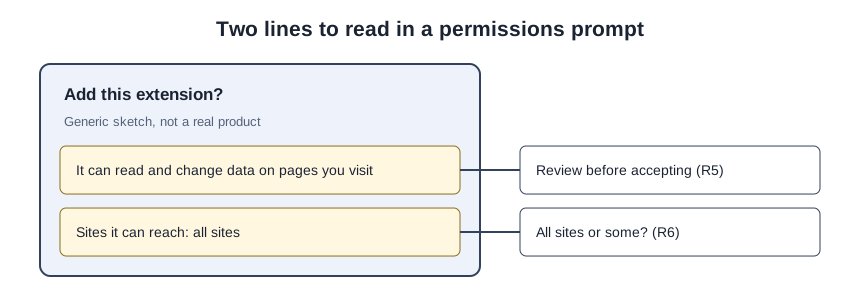
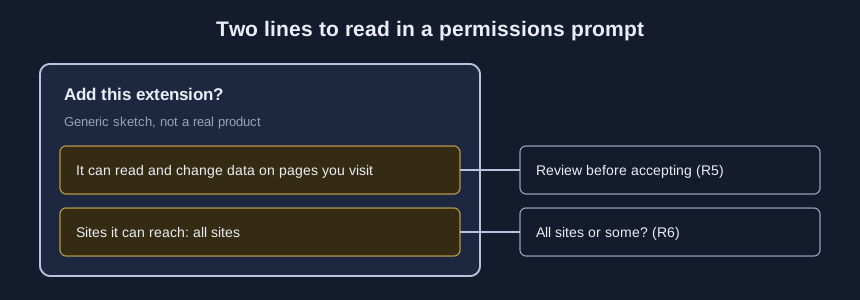
Read the permissions it asked for and the sites it can reach. The Canadian guidance says extensions “can request permission to gather all information that the browser sees, including passwords and keystrokes,” and its best practices include “Review permissions before accepting.” The NCSC guide notes: “Extensions typically have permissions to read or change the data on any websites a user visits.” Unread permissions are a VERIFY under R5, and reach to all sites is a VERIFY under R6.
-
Check that it updates on its own. The NCSC guide asks IT admins to turn on automatic updates for the browser and its extensions, and the Canadian guidance also lists “perform automatic updates.” Manual or unknown updates are a VERIFY under R7.
-
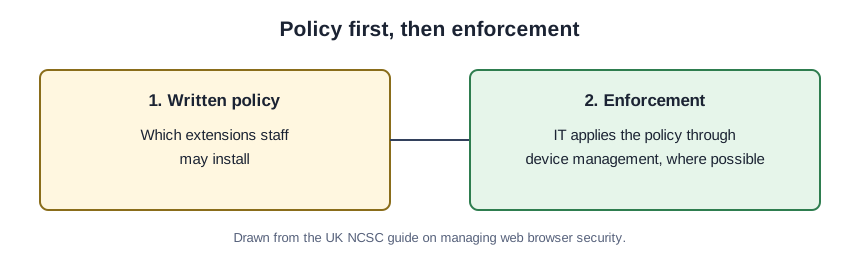
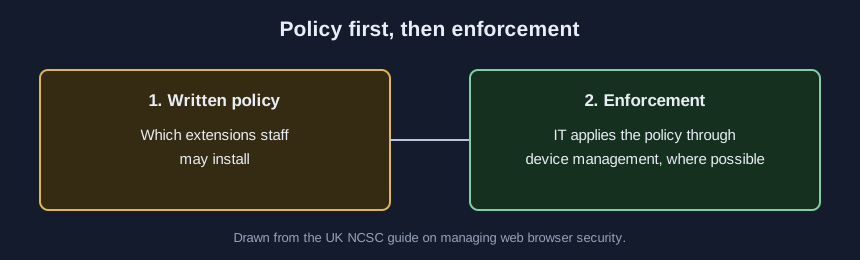
Record who approved it, and whether a written policy exists. The NCSC guide says to “develop a policy around the installation of third-party extensions on your browser” and to enforce it with device management where possible. No approval yet, or no process at all, is a VERIFY under R4.
-
Mark any extension staff use on pages with member or donor records (our rule). Neither guide says this; it comes from the research in our companion article, so the lab keeps it a VERIFY under R8, never a STOP.
-
Enter the facts in the lab and copy the record. Fix every STOP, then clear each VERIFY with IT. The NCSC guide asks you to “consider the likelihood and impact should the application be malicious or vulnerable,” even for a PASS. Then tell staff why the list exists.
One browser at the Quorlaby Society
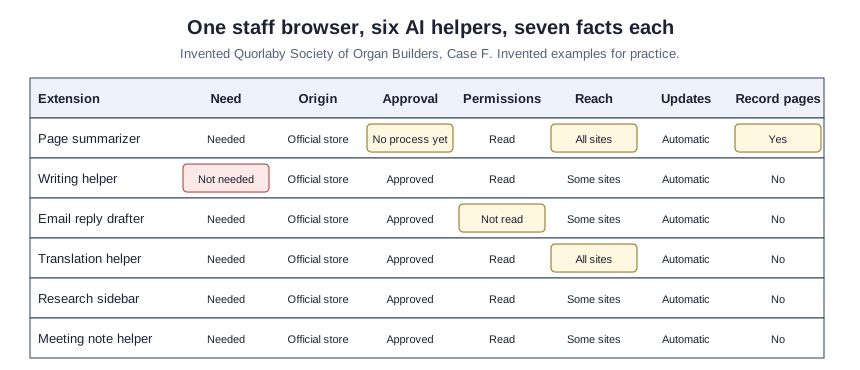
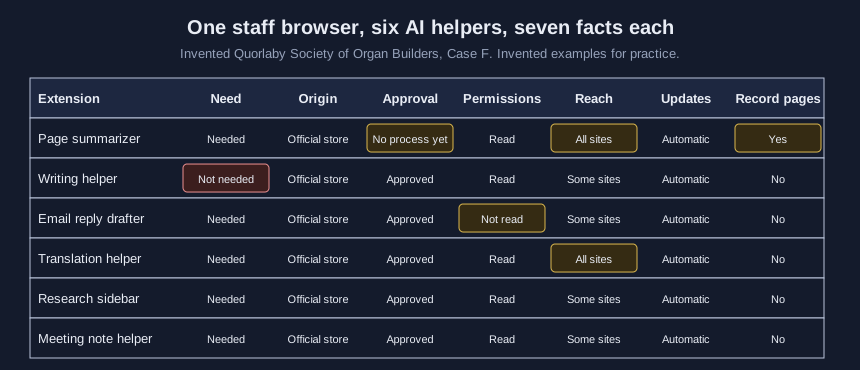
This is a teaching example, not a case study. At the Invented Quorlaby Society of Organ Builders, one browser on the membership desk holds six AI helpers (Case F). The page summarizer is needed and came from the official store, but there is no approval process yet, it reaches all sites and it runs on member records: a VERIFY under R4 that also matches R6 and R8. Nobody needs the writing helper for work, so it is a STOP under R1.
This is the lab’s record for Case F, shown as an example:
Invented Quorlaby Society of Organ Builders, AI browser extension check, Nov 18 2026, Case F: STOP 1, VERIFY 3, PASS 2
Row 1 (Page summarizer): VERIFY R4, also R6, R8
Row 2 (Writing helper): STOP R1
Row 3 (Email reply drafter): VERIFY R5
Row 4 (Translation helper): VERIFY R6
Row 5 (Research sidebar): PASS
Row 6 (Meeting note helper): PASS
Invented examples for practice. Not a security audit.
Check your list against the six cases
Your record is done when no field is blank. To test yourself, sort each case on paper, then load it.
| Practice case | Rows to stop | Rows to verify | Rows that pass |
|---|---|---|---|
| Case A | 0 | 0 | 6 |
| Case B | 0 | 2 | 4 |
| Case C | 2 | 1 | 3 |
| Case D | 0 | 4 | 2 |
| Case E | 2 | 2 | 2 |
| Case F | 1 | 3 | 2 |
Across the six cases, seven rows match two or more rules, counted by the lab each time.
The helper nobody remembers installing
Skipping the extension added for one project. It stays installed after the project ends, so list it.
Reading reviews instead of permissions. The Canadian guide suggests reading reviews too, but reviews do not say what an extension can reach.
Treating a PASS as a security audit. A PASS does not show what the extension sends or keeps.
What the lab does not do
The lab inspects no extension; it sorts only what you choose on the page. The guides rank nothing, so we picked which rules stop an extension, and R8 is ours alone.