Tutorial
BeginnerTest Each Member Task on Your Website for Accessibility
Walk seven member tasks, from renewing dues to reading the prospectus, through basic checks, a tool, a person and real testers, then sort each into STOP, VERIFY or PASS.
Time needed: About 90 minutes to log seven tasks and run the six practice cases, plus time to schedule testers
Before you start:
- A list of the things members most often do on your website, such as renewing, signing in and registering
- The web addresses of every step in each task, including any payment, registration or portal pages on other domains
- Any automated accessibility report you already have, and a note of who reviewed it
- A browser with a keyboard, to run the lab and try the basic checks yourself
Accessibility Website Membership Events Quality Checks
By the end you will have a log of seven tasks members do on your website, from renewing dues to reading the prospectus, with each task tested where it actually runs and sorted into STOP, VERIFY or PASS.
These checks come from W3C accessibility guidance. We chose the lab’s rules for teaching, and a PASS is no proof the task conforms. None of this is legal advice about what your association is required to do.
Try it now: the member task accessibility check lab gives you seven tasks at an association that does not exist and six practice cases. Choose a value in each dropdown and the page sorts every task on the spot and names the rule that decided it. It runs only in your browser, sends nothing and uses no AI.
Why a clean report is where the work starts
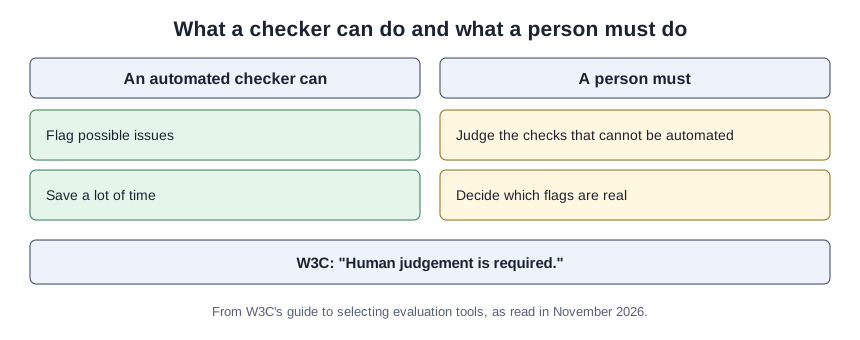
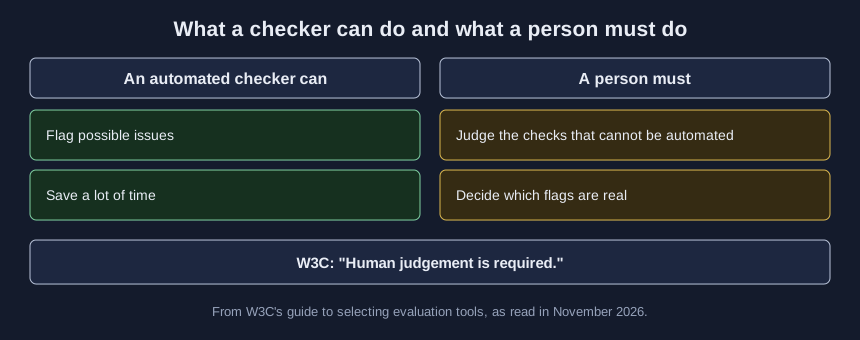
A clean automated report, or a promise that a widget handles accessibility, does not tell you whether a member who uses a keyboard or a screen reader can renew. W3C’s guide to selecting evaluation tools is blunt about the first: “Tools cannot check all accessibility aspects automatically. Human judgement is required.” Its own basic review, Easy Checks, carries a warning of its own: “A web page could seem to pass these checks, yet still have significant accessibility barriers.”
So this method follows tasks rather than pages. If a widget is part of your story, our article on why an AI accessibility widget does not make your website accessible covers what the FTC alleged about one.
Seven steps from task list to sorted log
-
List the tasks, not the pages. The W3C evaluation method, WCAG-EM 2.0, tells evaluators to “Explore the target product to identify its essential functionality,” and its examples of samples to include are pages that “support sensitive or high-risk functionality such as authentication, managing personal information, or financial transactions.” For an association, in our reading, that means joining or renewing and paying dues, signing in, registering for events and finding member resources. Mark each of your seven Everyday or Sensitive.
-
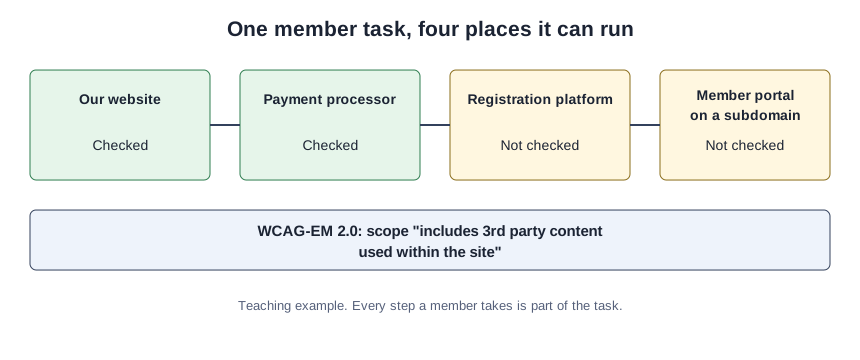
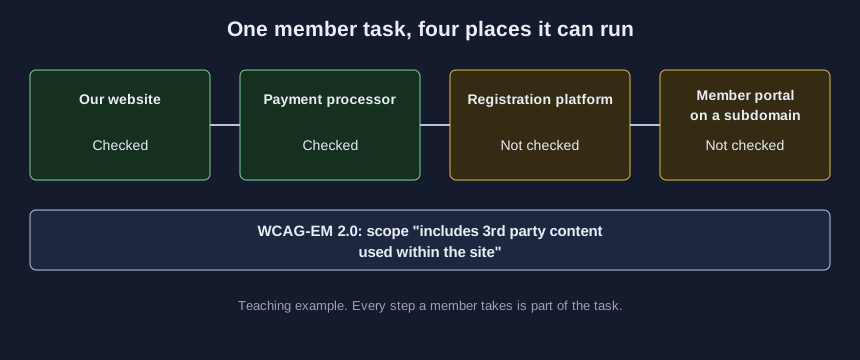
Follow each task across every domain it touches. Click through each task as a member would and note where every step runs: your own site, or another domain such as a payment processor, a registration platform or a portal on a subdomain. WCAG-EM 2.0 describes a banking site whose scope “includes 3rd party content used within the site,” and warns that leaving parts out “would likely conflict with the WCAG 2.2 conformance requirements for full pages and complete processes.”
-
Run Easy Checks on every page in the task. W3C’s Easy Checks cover image alternative text, page title, headings, color contrast, skip link, visible keyboard focus, language of page, zoom, captions, transcripts, audio description, labels and required fields. The page says they let you “find out whether or not accessibility is addressed in even the most basic way.” Record All passed, One or more failed, or Not done. For how to judge alt text and captions themselves, use our tutorial on checking captions and alt text before publishing.
-
Run an automated checker, then have a person review what it said. Tools can save a lot of time, but W3C’s tools guide says “Some accessibility checks just cannot be automated and require manual intervention,” and that tools “can only assist” in determining accessibility. A flagged issue needs a person too, because “Sometimes evaluation tools can produce false or misleading results.”
-
Ask people with disabilities to try the sensitive tasks. W3C’s page on involving users says that evaluating with users with disabilities “identifies usability issues that are not discovered by conformance evaluation alone.” It can be informal: the page’s example is to “ask someone you know who uses a screen reader” to find some data in an early draft of a data table. Ask more than one person, because the same page cautions, “Avoid assuming that input from one person with a disability applies to all people with disabilities.” W3C sets no number, so how many testers is enough is your call.
-
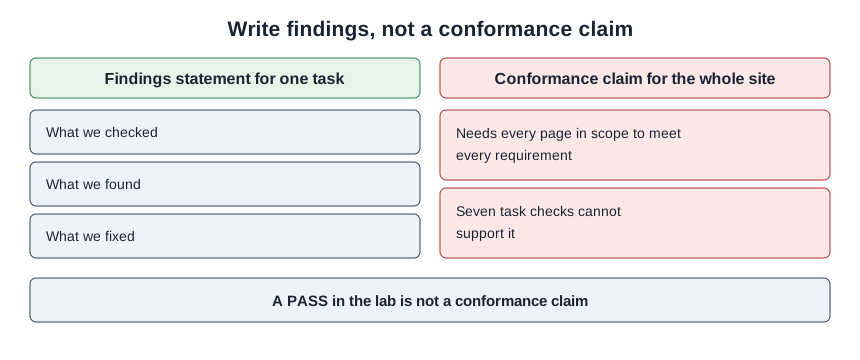
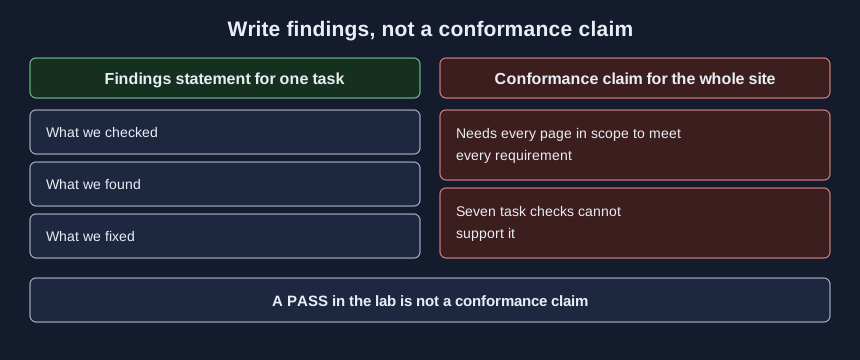
Write findings, not a conformance claim. WCAG-EM 2.0 ties a conformance claim to every page in its scope meeting every requirement, and says “WCAG 2 conformance claims cannot be made for entire websites based upon the evaluation of a selected sub-set of web pages and functionality alone.” Easy Checks, by W3C’s own description, are “quick and easy, rather than exhaustive.” Your write-up should say what you checked, what you found and what you fixed.
- Enter the results in the lab and clear the STOP tasks first. Then clear each VERIFY, and rerun a task whenever a vendor changes a page or a platform.
One task, logged
This is a teaching example, not a case study. Here is Task 2 at the Invented Fenwarrow Society of Rural Water Engineers, as its web coordinator might log it:
Fenwarrow member task log (invented example)
Task 2: Join or renew and pay dues
Kind of task: Sensitive (personal information and payment)
Easy Checks: All passed on the join page, the renewal form
  and the payment page
Automated checker: No issues flagged
Person reviewed beyond the tool: Done (keyboard only, start
  to finish, including the payment page)
Where the steps run: Another domain, checked (payment page
  hosted by the payment processor)
Tried by people with disabilities: Yes, several (members
  who use screen readers or a keyboard only)
What the write-up says: Findings only
Lab result: PASS. Not a conformance check.
In the lab this is Task 2 in Case A, and it passes because the payment step was checked where it runs and the write-up sticks to findings.
Check your calls against six cases
Call every task’s verdict on paper first, then load the case. The lab’s own counts for each case follow.
| Practice case | Tasks at STOP | Tasks at VERIFY | Tasks at PASS |
|---|---|---|---|
| A, all seven logged in full | 0 | 0 | 7 |
| B | 2 | 1 | 4 |
| C | 1 | 2 | 4 |
| D | 0 | 3 | 4 |
| E | 1 | 2 | 4 |
| F | 1 | 1 | 5 |
In Case B, Task 2’s write-up says the renewal conforms while its payment step on another domain was never checked, so R3 stops it, and R5 and R11 are listed as also matched. In Case F, Task 7 passes even though no automated checker ran: a person reviewed the task, and none of the lab’s rules requires a tool. Across the six cases, six tasks hit two or more rules, a count the lab computes live.
Mistakes that make a task look finished
Stopping at the edge of your own domain. The payment or registration step can be where a member gets stuck, and it is easy for nobody on staff to own it.
Counting one tester as a verdict. One person’s experience is real, and it still does not stand for everyone who uses assistive technology.
Writing “the site conforms” after checking a few tasks. That sentence needs a full evaluation behind it, and the lab stops any row that makes it.
What the lab cannot tell you
The lab sorts only the values you choose and stores nothing. Its rules, their order and the three verdicts are teaching choices drawn from the W3C pages above, not W3C requirements, and a PASS means only that nothing you entered raised a flag. The W3C pages are described as they read in November 2026. Whether your association has a legal duty to meet a particular standard is a question for counsel.
Sources (4)
- W3C Web Accessibility Initiative: Easy Checks, A First Review of Web Accessibility (W3C marks this page Draft) (page as read November 2026)
- W3C Web Accessibility Initiative: Selecting Web Accessibility Evaluation Tools (page as read November 2026)
- W3C: WCAG Evaluation Methodology (WCAG-EM) 2.0, W3C Group Note, 23 July 2026
- W3C Web Accessibility Initiative: Involving Users in Evaluating Web Accessibility (page as read November 2026)